First run
Move the set-up Pinkrab for the first time with teleoperation. When you move the Hermit in your hand, the arm on the same side follows that motion, and when you open and close the jaw with your index finger, the arm’s gripper opens and closes with it. Before recording demonstrations, use this step to check that both arms follow Hermit properly and reach the place where the work will be done.
Robot bringup
Section titled “Robot bringup”Pinkrab’s servos move only through ROS. Run bringup on the computer the robot is connected to.
ros2 launch pinkrab_bringup robot.launch.py[INFO] [launch]: Default logging verbosity is set to INFO
[INFO] [gate-1]: process started with pid [41241]
[INFO] [driver-2]: process started with pid [41242]
[gate-1] [INFO] [1793200725.355597000] [pinkrab_safety]: scene.xml: 14 joints, ramped at 300 deg/s, 60 deg/s under a policy, shaped at 400 deg/s^2 and 8000 deg/s^3
[driver-2] [INFO] [1793200726.033573000] [pinkrab_driver]: left, right on the bus at 60 Hz, torque off
...This launch starts the driver that opens the servo bus and the safety gate. Commands to the arms all go through the safety gate, which checks the joint range, collisions with the desk and board, and the joint speed (300° per second or less), and sends only the commands that pass to the driver. The driver is the only process that opens the servo bus, so there is no path to the servos that skips the gate.
Running Pinkrab Studio
Section titled “Running Pinkrab Studio”pinkrab-studio Pinkrab studio -> http://localhost:8730/
reachable from: this machine only
physics: scene.xml - 14 joints, 14 actuators, 500 Hz
arms: simulation until the page says otherwise - the robot switch
on the page starts the bridge and the handheld loop beside
it (the pedal starts with this server); the rig's own side
is not started here:
ros2 launch pinkrab_bringup robot.launch.py
Ctrl+C to stop.Open http://localhost:8730/ in a browser and press Real robot on the home screen to open the Teleop page. If bringup is not up, “The robot is not up” appears with the launch command to run, so run the command above and press Check again.
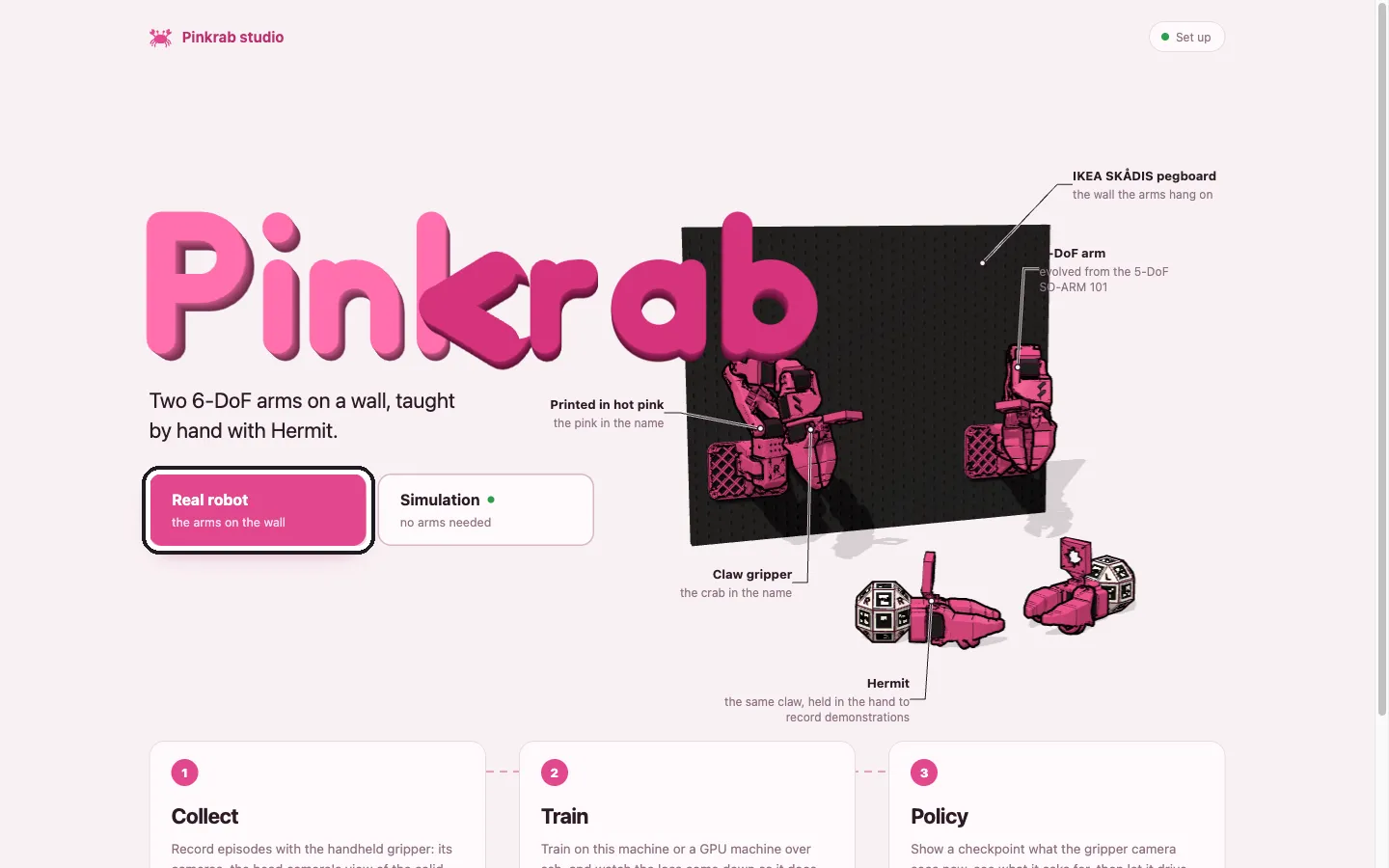
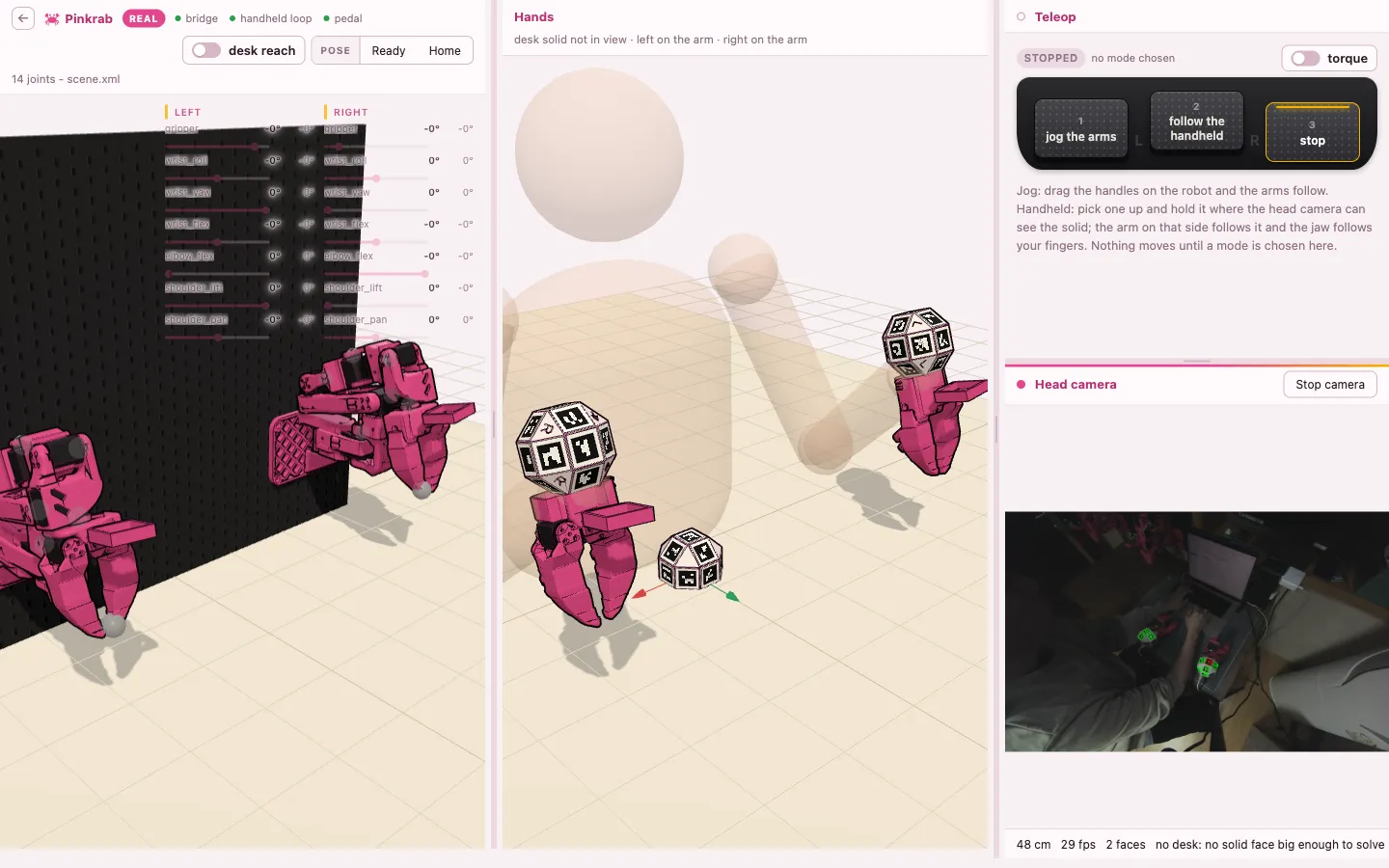
In real robot mode, studio starts the bridge that connects it to ROS and the teleop node that follows Hermit, and the 3D arms on the screen show the real arms’ servo positions as they are. Turn on the top camera and marker tracking too, with Start camera in the Top camera window of the Teleop page.
Foot pedals
Section titled “Foot pedals”On the Teleop page, the three foot pedals work as follows, and you can also choose them with the same buttons on the screen. The arms do not move until you choose a mode.
| Pedal | Action on the Teleop page |
|---|---|
| 1 | jog: dragging the handle on the 3D arm on the screen makes the arm move after it |
| 2 | Moves following Hermit |
| 3 | Stop |
Pedal 3 stops the arms in place on any page. Turning the torque switch off releases the arms’ strength so you can move them by hand, and turning it on makes them hold in place.
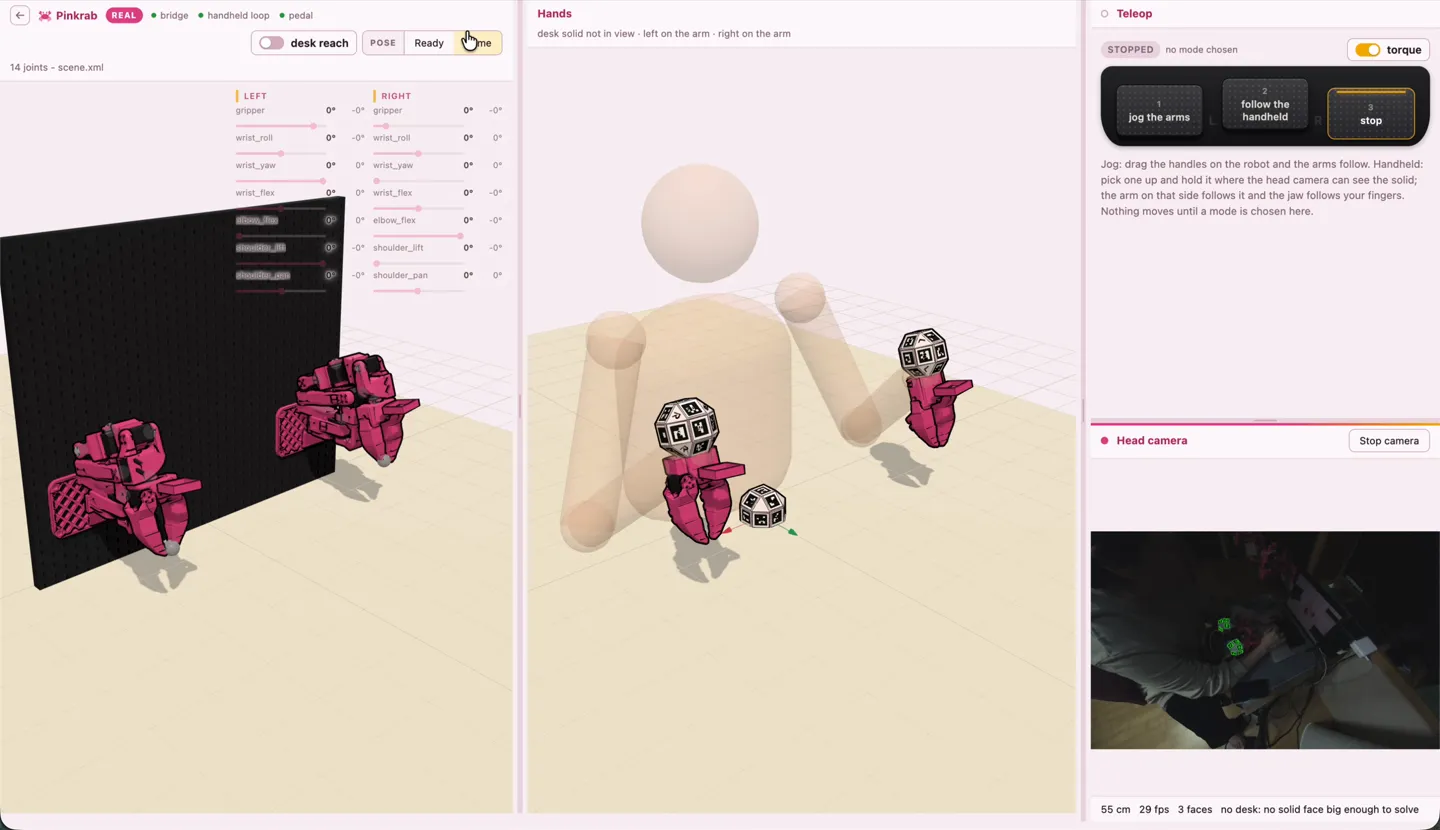
The Ready and Home buttons slowly take both arms to that pose. Ready is the pose to start operating with Hermit, and Home is used to lower the arms into the folded pose held during calibration in Setup.
Following Hermit
Section titled “Following Hermit”- Send both arms to the Ready pose.
- Mount the top camera on your head, place the table marker on the desk, hold a Hermit in each hand, and make sure the UMI marker on the handle and the table marker are visible together to the top camera.
- Press pedal 2 and move Hermit slowly.
The arm follows not the place where Hermit is but how far Hermit has moved. The place where the arm was when you pressed pedal 2 and the place where Hermit first appeared become the reference, and after that, when Hermit goes 5 cm forward, the arm’s tool also goes 5 cm forward. Hermit’s motion is measured relative to the table marker, so the arm does not move when you turn your head. The table marker may be placed anywhere on the desk, but if it disappears from the view, the arm stops.
Which arm follows is decided by the UMI marker visible to the top camera, so the left-hand Hermit moves the left arm and the right-hand Hermit moves the right arm. If Hermit disappears from the top camera for more than 0.5 seconds, that arm stops, and when it becomes visible again that place becomes the new reference. To send an arm somewhere your hand cannot reach, cover Hermit briefly and make it visible again at a comfortable place.
If an arm moves strangely, press pedal 3 right away.